

-
Products
Overview Products

-
2D Cutting
-
Tube Cutting
-
3D Cutting
-
Intelligent Welding
-
Intelligent Cutting Head
-
Industrial Automation
-
Industrial Software
-
Combination
-
Combination
BOCHU New Product -
Combination
BOCHU New Product -
Controller
BOCHU New Product -
2D Cutting Head
Tube Cutting Head
3D Cutting Head
Consumables
BOCHU New Product -
Servo
BOCHU New Product -
Industrial 4.0
-
- Support
- About
- Online Store











- Software Download
- Manual
- Video
- Tutorial
Ⅰ. Overview
To ensure safe part machining, TubesT supports displaying a part status panel, helping you quickly understand the safety status of parts.
By identifying potential risks in advance, you can promptly check and correct abnormal toolpaths before machining starts, thereby reducing machining risks and improving overall machining efficiency.
Ⅱ. How to use
1. Permission-related Information
Part status display is supported in 2026V1 and later. Please first Check the Version Number. If you are using an earlier version, you can Upgrade the Nesting Software.

Notice: Blue text indicates clickable tutorial links. Click the link to view the detailed parameter descriptions and usage instructions for the corresponding feature.
2. Function Overview
(1) Enabling the Function
Function entry: User Settings → User Habits → (scroll to the bottom) Display parts status.

Notice: This checkbox is enabled by default and usually requires no additional configuration.
(2) Function Description
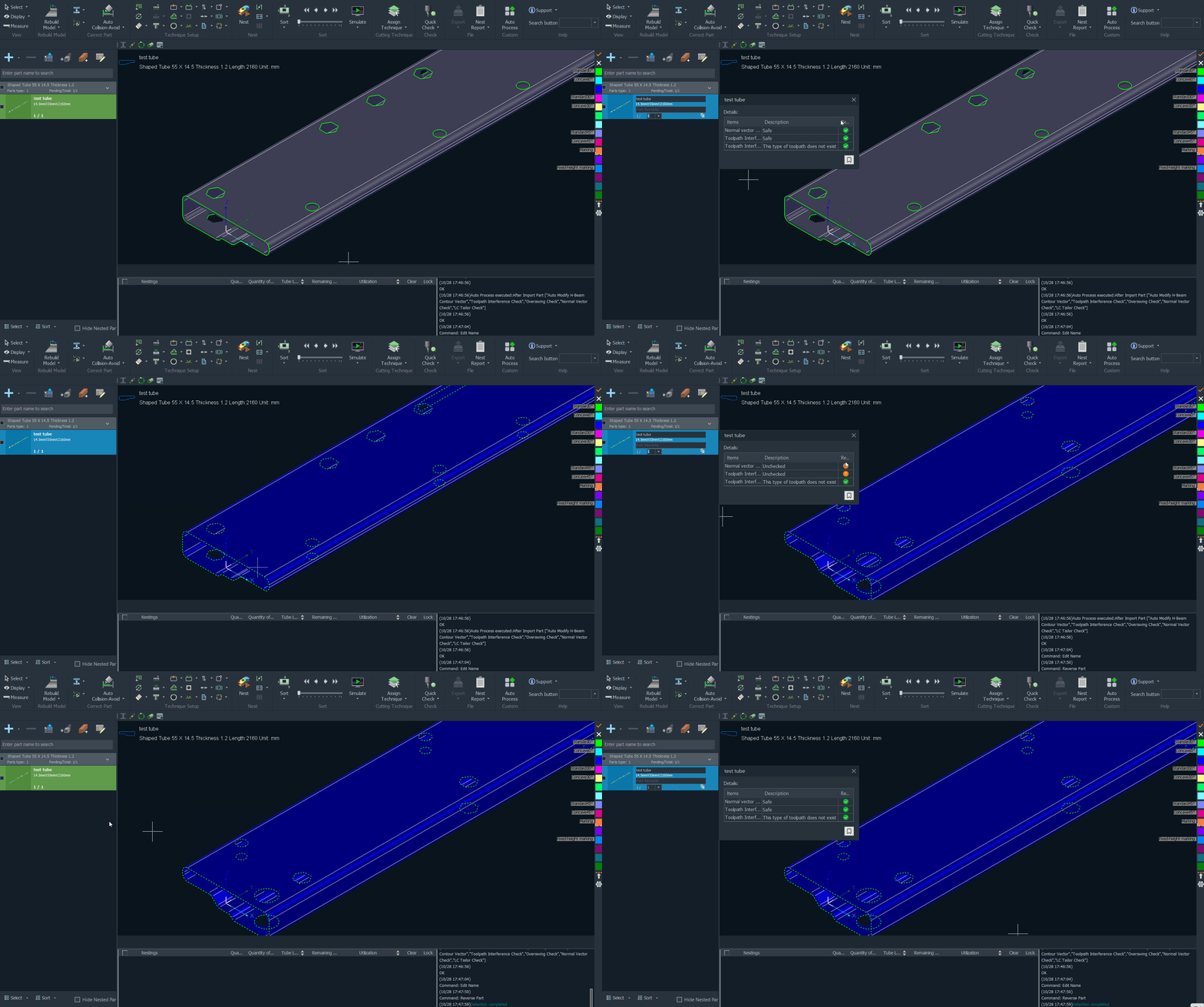
After checking Display parts status, a part status panel will be displayed on the right side of the part, showing the detailed check results, as shown in the figure below. If this option is not checked, the detailed information of the part status panel will not be displayed.

(3) Parameter Description
For different tube types and toolpath types, the inspection items required for each part are different, so the content displayed in the part status box also differs slightly. Specifically:
| Items | Supported Tube Types / Toolpaths |
| Toolpath Interference Check - Straight Cut | All Tube Types |
|
Toolpath Interference Check - Bevel |
|
| Overswing Check | |
| Normal Vector Check | |
| LC Tailor Check | Angle Steel, Channel Steel |
Once the check is complete, only the "Danger" and "Unable to detect" icons will be shown in the part list.

Starting from 2026V1.5, if an "Unable to check" condition occurs, TubesT supports manually changing the part status to "Safe".
Select the part, then click the "gear" icon in the "Part Status Panel" to open the Safety Rule Settings window.
Three options are provided: Always prompts "Unable to check", Pass check this time (still prompts upon restart), and Always prompt "Safe". You can select the appropriate option according to your actual situation.

You can also open this window by selecting Safety Rule Settings from the Quick Check drop-down menu.

(4) Quick Check
Whenever you need to check the part status, you can click Quick Check to quickly perform the four types of check shown in the figure and refresh the part status.

For example, after performing any operation to edit the part’s toolpath (such as reversing it), if the check result refreshes to 'Not Detected', click Quick Check to manually run part status check.
Ⅲ. FAQ
1. What should we do if the part status check fails?
If toolpath interference check fails, please refer to Contour Vectors, Collision-Avoid, etc.
If overswing check fails, please refer to Overswing Angle Handling.
If normal vector check fails, please refer to Normal Vector Check.
If LC tailor check fails, please refer to LC Tailor Check.
2. What should we do when interference check prompts "Unable to check"?
Please check the reason description in the Part Status Panel carefully.
For example, if the A-axis bevel toolpath prompts ’Unable to check‘ it means the 2D cutting head (*.chc) cannot detect the bevel toolpath. This can be resolved in the following two ways.
-
-
- Refer to Cutting Head Setup Guide to configure a 3D cutting head for the software and simulate to confirm safety.
- If you confirm it is safe, you can modify the setting in Safety Rule Settings, as shown in the figure below
-

Ⅰ. Overview
To ensure safe part machining, TubesT supports displaying a part status panel, helping you quickly understand the safety status of parts.
By identifying potential risks in advance, you can promptly check and correct abnormal toolpaths before machining starts, thereby reducing machining risks and improving overall machining efficiency.
Ⅱ. How to use
1. Permission-related Information
Part status display is supported in 2026V1 and later. Please first Check the Version Number. If you are using an earlier version, you can Upgrade the Nesting Software.
Notice: Blue text indicates clickable tutorial links. Click the link to view the detailed parameter descriptions and usage instructions for the corresponding feature.
2. Function Overview
(1) Enabling the Function
Function entry: User Settings → User Habits → (scroll to the bottom) Display parts status.
Notice: This checkbox is enabled by default and usually requires no additional configuration.
(2) Function Description
After checking Display parts status, a part status panel will be displayed on the right side of the part, showing the detailed check results, as shown in the figure below. If this option is not checked, the detailed information of the part status panel will not be displayed.
(3) Parameter Description
For different tube types and toolpath types, the inspection items required for each part are different, so the content displayed in the part status box also differs slightly. Specifically:
| Items | Supported Tube Types / Toolpaths |
| Toolpath Interference Check - Straight Cut | All Tube Types |
|
Toolpath Interference Check - Bevel |
|
| Overswing Check | |
| Normal Vector Check | |
| LC Tailor Check | Angle Steel, Channel Steel |
Once the check is complete, only the "Danger" and "Unable to detect" icons will be shown in the part list.
Starting from 2026V1.5, if an "Unable to check" condition occurs, TubesT supports manually changing the part status to "Safe".
Select the part, then click the "gear" icon in the "Part Status Panel" to open the Safety Rule Settings window.
Three options are provided: Always prompts "Unable to check", Pass check this time (still prompts upon restart), and Always prompt "Safe". You can select the appropriate option according to your actual situation.
You can also open this window by selecting Safety Rule Settings from the Quick Check drop-down menu.
(4) Quick Check
Whenever you need to check the part status, you can click Quick Check to quickly perform the four types of check shown in the figure and refresh the part status.
For example, after performing any operation to edit the part’s toolpath (such as reversing it), if the check result refreshes to 'Not Detected', click Quick Check to manually run part status check.
Ⅲ. FAQ
1. What should we do if the part status check fails?
If toolpath interference check fails, please refer to Contour Vectors, Collision-Avoid, etc.
If overswing check fails, please refer to Overswing Angle Handling.
If normal vector check fails, please refer to Normal Vector Check.
If LC tailor check fails, please refer to LC Tailor Check.
2. What should we do when interference check prompts "Unable to check"?
Please check the reason description in the Part Status Panel carefully.
For example, if the A-axis bevel toolpath prompts ’Unable to check‘ it means the 2D cutting head (*.chc) cannot detect the bevel toolpath. This can be resolved in the following two ways.
-
-
- Refer to Cutting Head Setup Guide to configure a 3D cutting head for the software and simulate to confirm safety.
- If you confirm it is safe, you can modify the setting in Safety Rule Settings, as shown in the figure below
-

