

-
Products
Overview Products

-
2D Cutting
-
Tube Cutting
-
3D Cutting
-
Intelligent Welding
-
Intelligent Cutting Head
-
Industrial Automation
-
Industrial Software
-
Combination
-
Combination
BOCHU New Product -
Combination
BOCHU New Product -
BOCHU New Product
-
2D Cutting Head
Tube Cutting Head
3D Cutting Head
Consumables
BOCHU New Product -
Servo
BOCHU New Product -
Industrial 4.0
-
- Support
- About
- Online Store















- Software Download
- Manual
- Tutorial
- CloudNest
Function Description
The part filtering function allows you to quickly filter out the required parts for nesting.
Operation Steps
1. Part Name Filter
-
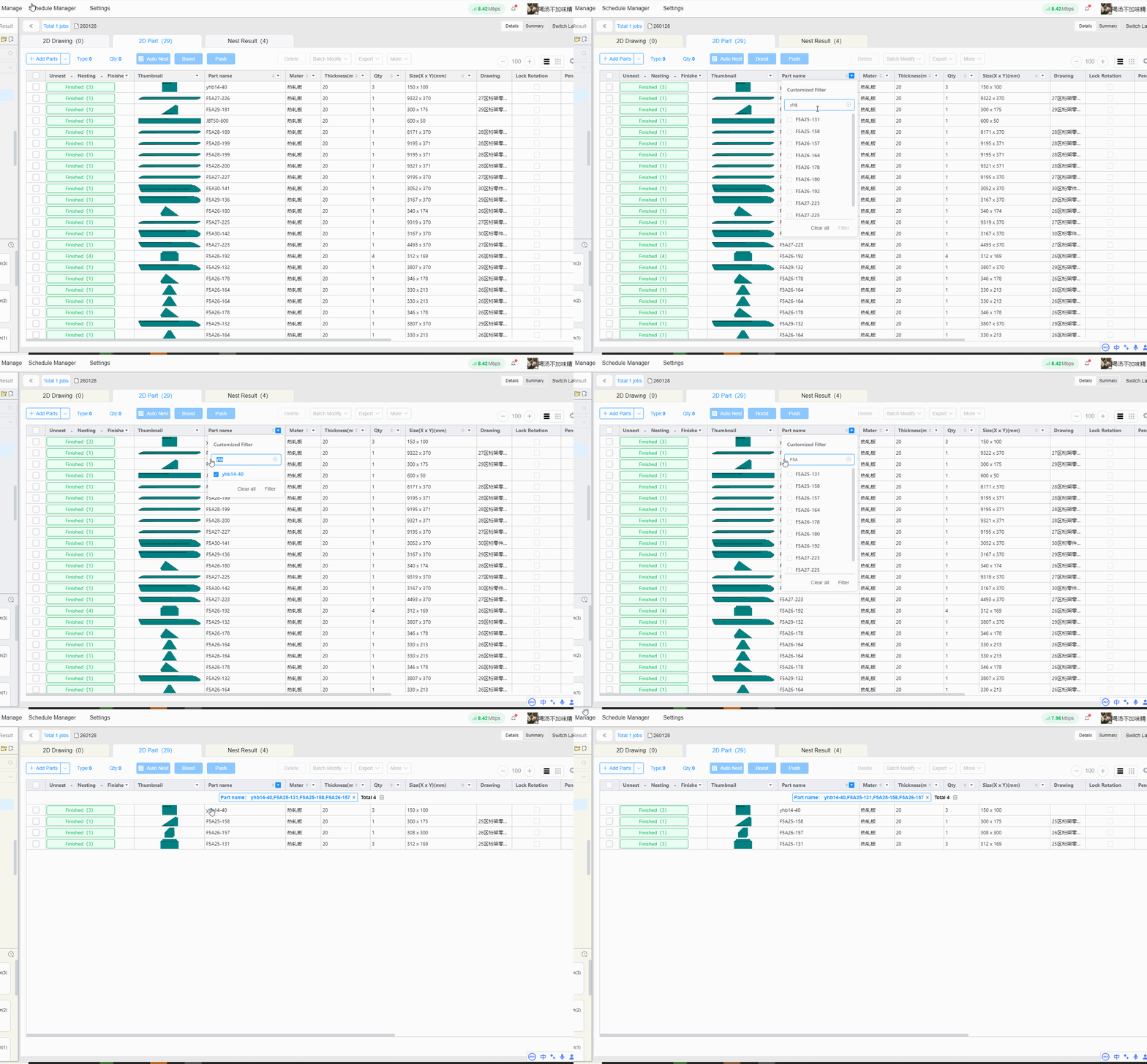
- Conditional Filter
Suitable for scenarios where you need to filter different part names at the same time. Enter the part name and press Enter, part names matching the criteria will be displayed. Checked results will not be cleared during repeated filtering. Click Filter or any blank area to complete the filtering.
-
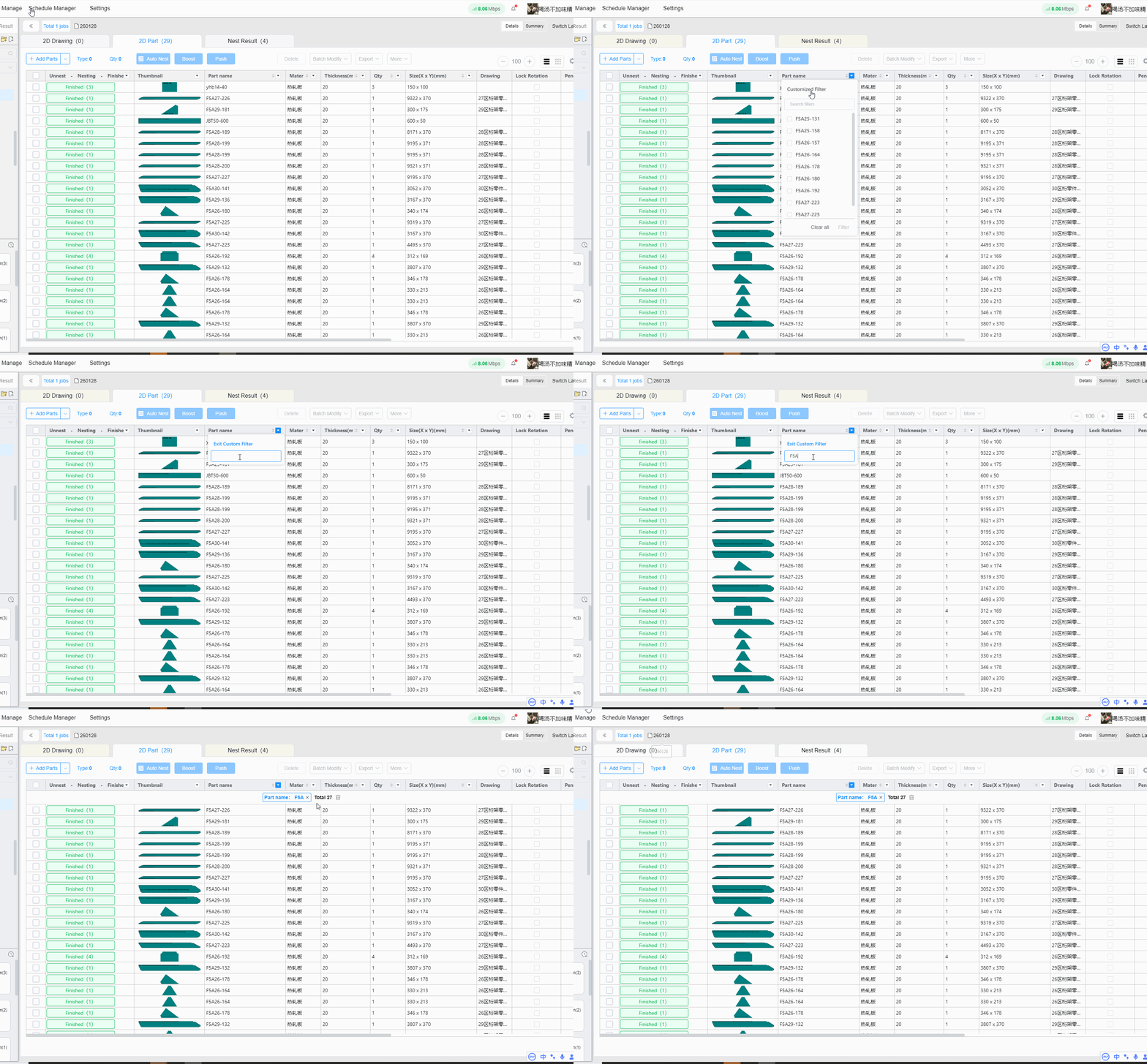
- Custom Filter
Suitable for fuzzy condition filtering. Enter a text, and all parts containing the entered text in their names will be displayed.
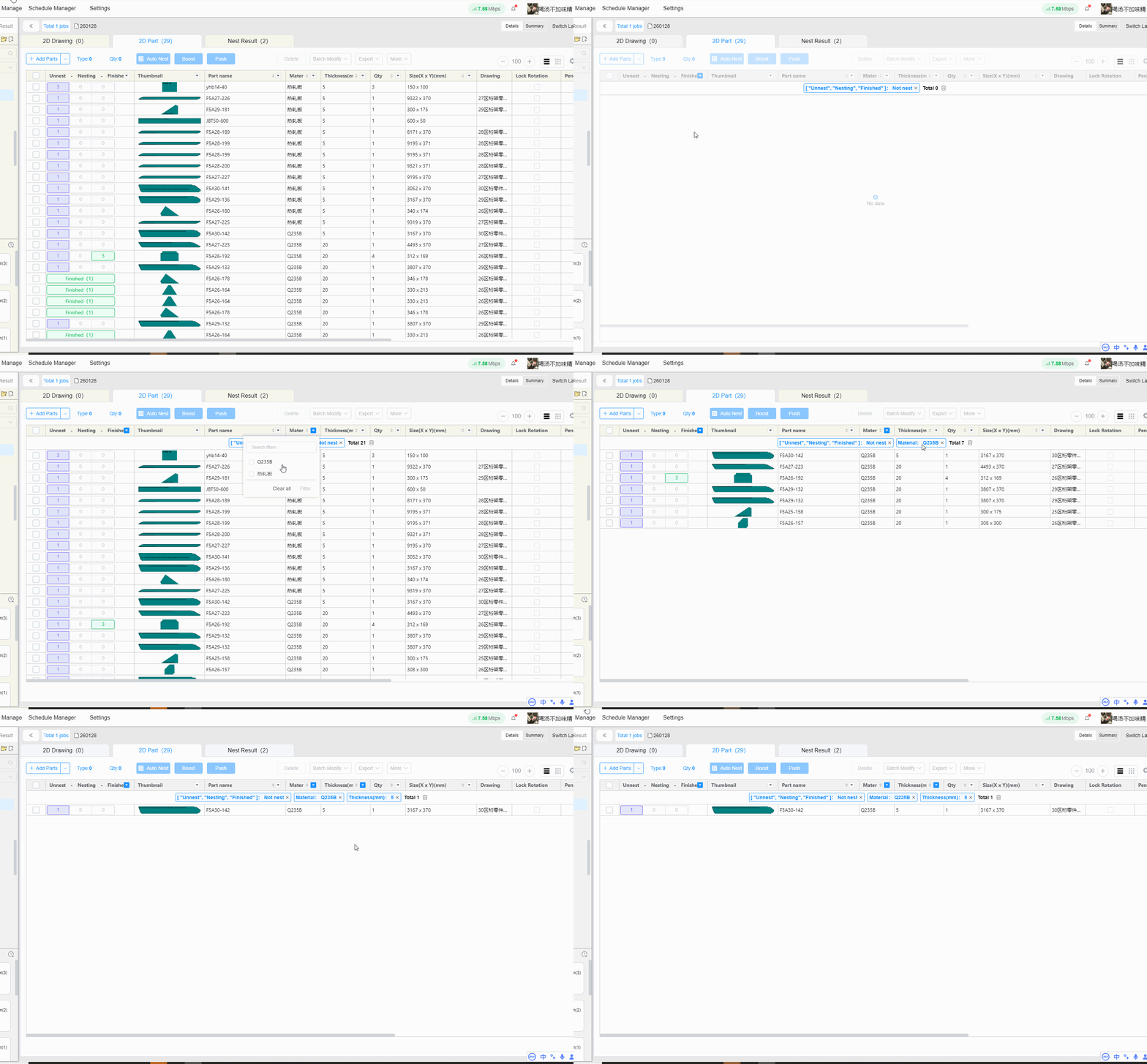
2. Part Basic Information Filter
Filter by conditions such as part nesting status, part type (bevel parts, straight cut parts), material, thickness, etc.
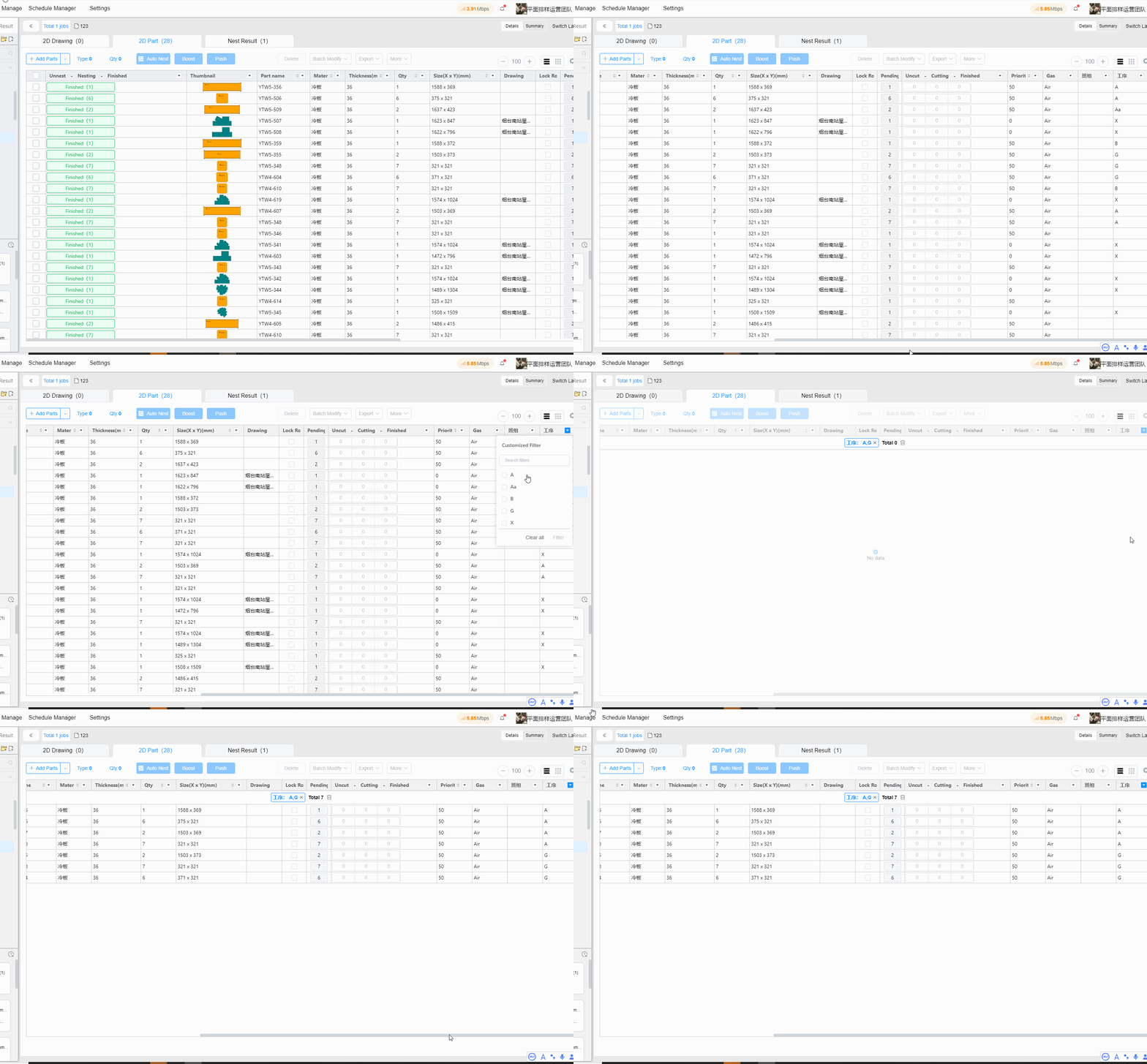
3. Part Extended Information Filter
If part extended information was imported together with the parts, you can display the extended information by referring to the custom display settings.
Searching and filtering part extended information follows the same method as part name filtering.
Function Description
The part filtering function allows you to quickly filter out the required parts for nesting.
Operation Steps
1. Part Name Filter
-
- Conditional Filter
Suitable for scenarios where you need to filter different part names at the same time. Enter the part name and press Enter, part names matching the criteria will be displayed. Checked results will not be cleared during repeated filtering. Click Filter or any blank area to complete the filtering.
-
- Custom Filter
Suitable for fuzzy condition filtering. Enter a text, and all parts containing the entered text in their names will be displayed.
2. Part Basic Information Filter
Filter by conditions such as part nesting status, part type (bevel parts, straight cut parts), material, thickness, etc.
3. Part Extended Information Filter
If part extended information was imported together with the parts, you can display the extended information by referring to the custom display settings.
Searching and filtering part extended information follows the same method as part name filtering.

