

-
Products
Overview Products

-
2D Cutting
-
Tube Cutting
-
3D Cutting
-
Intelligent Welding
-
Intelligent Cutting Head
-
Industrial Automation
-
Industrial Software
-
Combination
-
Combination
BOCHU New Product -
Combination
BOCHU New Product -
Controller
BOCHU New Product -
2D Cutting Head
Tube Cutting Head
3D Cutting Head
Consumables
BOCHU New Product -
Servo
BOCHU New Product -
Industrial 4.0
-
- Support
- About
- Online Store














- Software Download
- Manual
- Video
- Tutorial
Ⅰ. Introduction
Machining rectangular pipe without chamfer, if the drawing is drawn without chamfer, you can use 【Quick Rectangular Path】 to generate a special toolpath for the drawing.
Applicable scenarios:
① Angle steel and channel steel: When importing, select “One-cut” to generate special toolpaths post-import, preventing cuts into excessively thick plates (New feature in TubesT 2025 V1).
② Rectangular tubes without chamfers requiring segmented cutting with corner notches to prevent redundant cuts
③ Angled cuts on I-beams: when cutting on non-beveling machines, select web thickness (thick/thin) for downstream processing consistency (New feature in TubesT 2025 V1)
Ⅱ. Notes
1. After use:
All layers, processes, and all editing operations will be erased. Therefore, please use this function before performing other operations!
2. Scope restrictions:
① A specific toolpath or part must be selected beforehand;
② Applies only to a single part.
3. Function location:
In versions 7.1.37.1 and above, the [Quick Rectangle Path] function is located within the dropdown menu of the 【Curve Tool】:

Version 7.1.31.2 and earlier versions: The 【Quick Rectangle Path]】option is located within the 【Optimize】 dropdown menu:

Ⅲ. Scenarios
You may first select the tutorial required based on your usage scenario, then directly click the quick jump link to navigate to the relevant section.
| Scenarios | Effect | Quick jump link | |
| 1 |
Angle steel, channel steel When importing, the “one-cut” option was selected. After import, Quick Rectangle Path must be regenerated to prevent cutting through exceptionally thick plates. |
 |
Scenario 1 |
| 2 |
Square tubes without chamfers Hope to perform facet cutting and leave gaps at the corners to prevent repeated cutting. |
 |
Scenario 2 |
| 3 |
I-beam non-beveling machine oblique cutting It is necessary to select web meat-rich/meat-deficient cutting to facilitate unified processing in downstream procedures. |
 |
Scenario 3 |
Scene 1:
For angle steel and channel steel, when "One-Cut" is selected during import, Quick Rectangle Path need to be generated after import to avoid cutting into the ultra-thick plate.
Version limitation: 7.1.61 and above
Prerequisites:
① For external drawings, "One-Cut" is checked in the import interface.

② When drawing the cross-section in TubeDraw, "One-Cut" is selected.

After application:
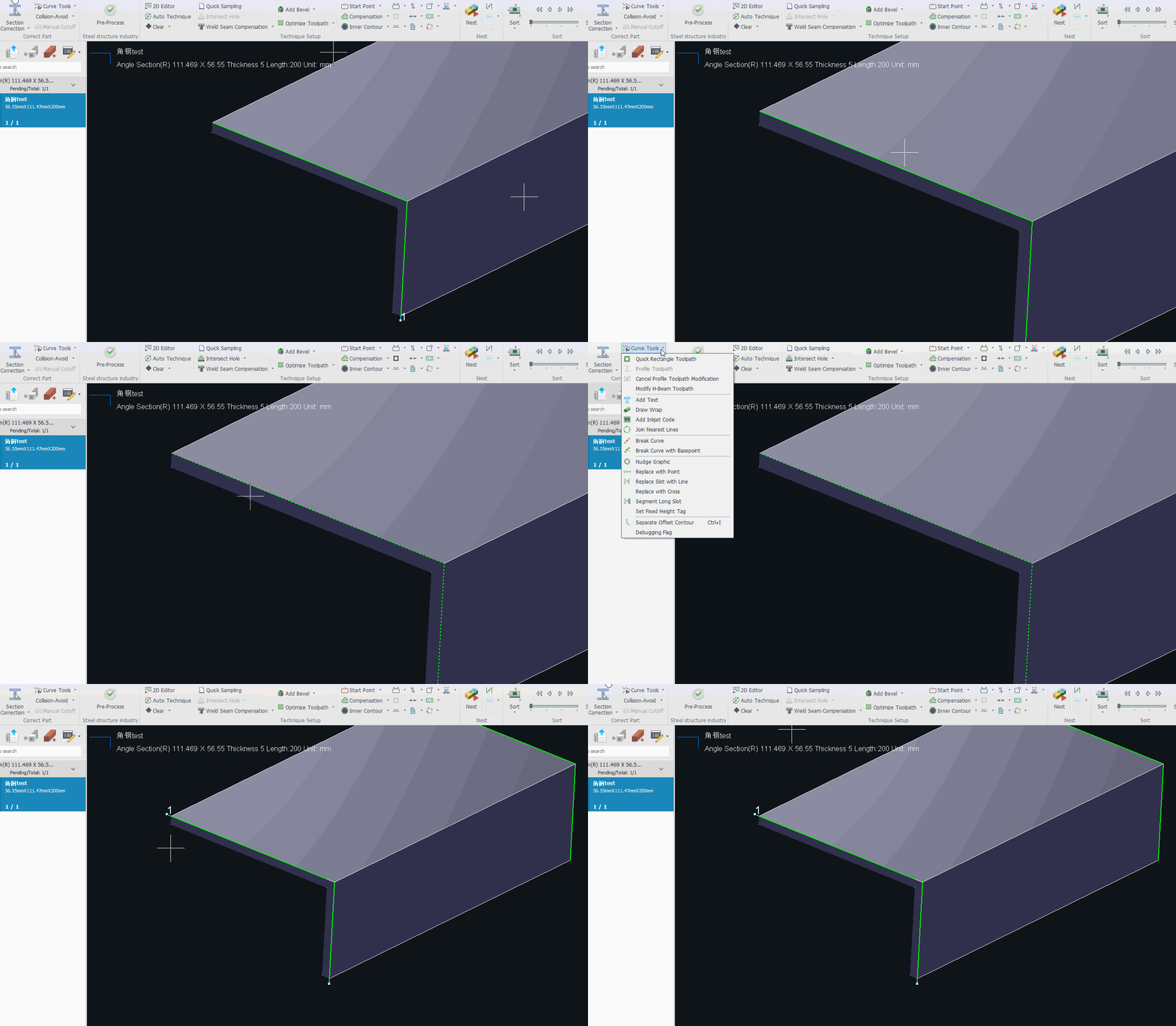
Angle steel and channel steel will adopt Profile Path for Faceted cutting (for detailed explanation of Profile Path, please refer to: " TubesT - Profile Path "), as shown in the figure below.
Steps:
Select the part, click 【Curve Tools】→【Quick Rectangle Path】.
Scene 2:
For rectangular tubes without chamfers, Facet cutting with notches at corners can be applied to prevent repeated cutting.
After application:
If the drawing involves rectangular tubes without chamfers, the 【Quick Rectangle Path】 function can be used to generate special toolpaths for the drawing. (Note: This function is not applicable if the rectangular tube has chamfers.)
Steps:
Select the part, click 【Curve Tools】→【Quick Rectangle Path】.
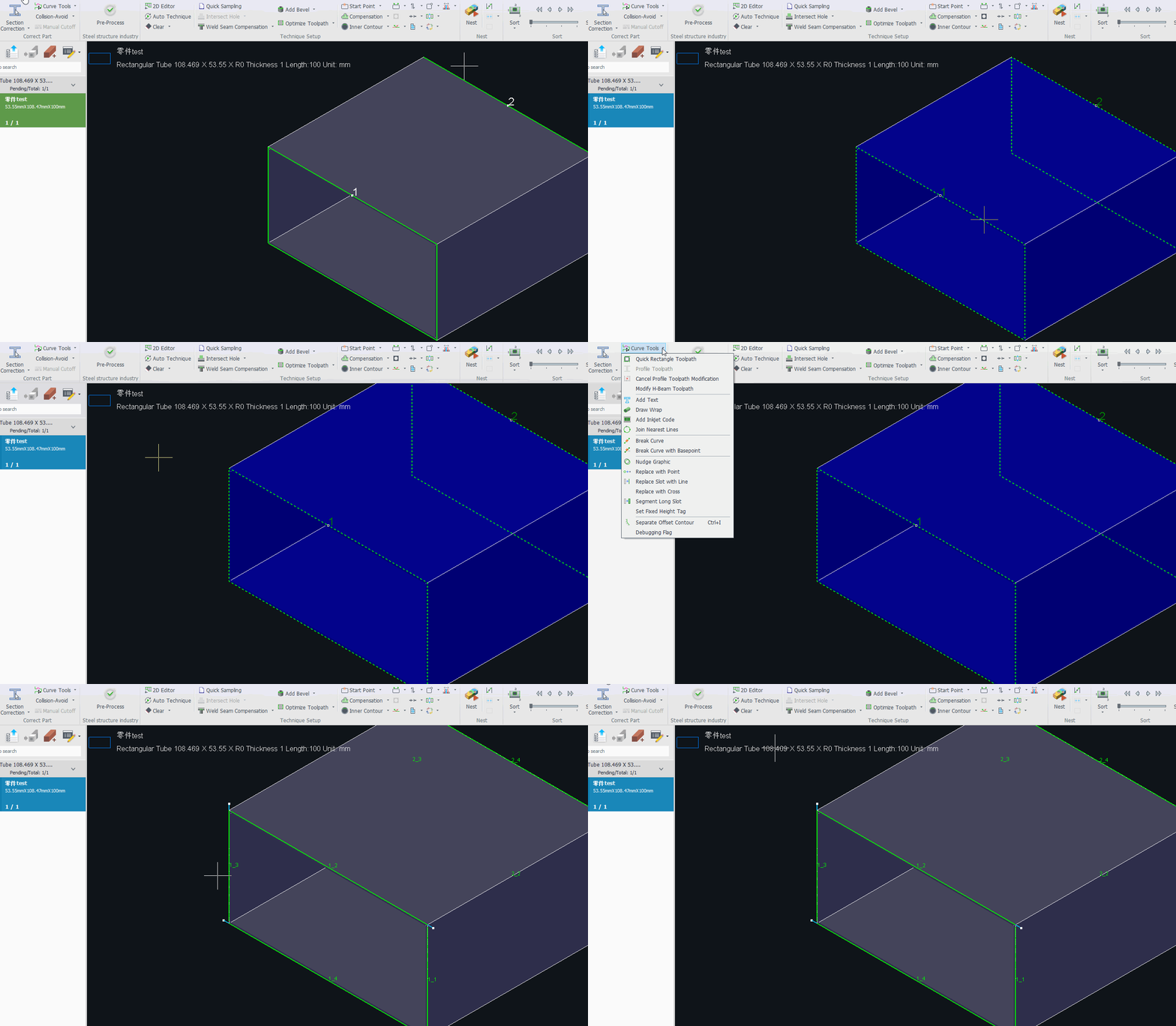
The machining effect is shown in the figure below:

Scene 3:
For oblique cutting of I-beams on non-beveling machines, it is necessary to select "web meat-rich" or "meat-deficient" cutting to facilitate unified processing in downstream procedures.
Application scenario:
When cutting inclined surfaces on machines without beveling cutting heads, the cutting head can only perform vertical cuts. This may result in two situations:
① Meat-rich:
If the system recognizes the lower toolpath (as shown in the figure) during part import, cutting along this path will leave excess waste material in the blue area. Subsequent grinding will be required to meet processing specifications.

② Meat-deficient:
If the system recognizes the upper toolpath (as shown in the figure) during part import, cutting along this path will remove excess material in the blue area. This can be addressed by subsequent patch welding and grinding, or left as-is if it does not cause interference.

Regardless of whether "meat-rich" or "meat-deficient" is chosen, consistency across a batch of parts is critical. If a batch contains both types, downstream processing becomes complicated.
Notes:
-
-
- ① When using the 【Quick Rectangle Path】 function to change the recognized web side, rotate the part first if necessary.
- ② For drawings with weld holes, use the 【Optimize H-beam web toolpath】 after rotation to achieve the same effect without reapplying this function.
- ③ Version limitation: 7.1.61 and above.
-
Scope of application:
① Applies to the front and rear web toolpaths on selected parts;
② Applies to individually selected toolpaths.
Steps:
Step 1: After importing the part, if the recognized web side is not ideal, select the part and click Rotate/Reverse (both states before and after rotation/reversal will remain "meat-rich").
Step 2: Select the part/toolpath for which you want to switch the web toolpath direction.
Step 3: Click 【Curve Tools】→【Quick Rectangle Path】.


Video tutorial:
Ⅰ. Introduction
Machining rectangular pipe without chamfer, if the drawing is drawn without chamfer, you can use 【Quick Rectangular Path】 to generate a special toolpath for the drawing.
Applicable scenarios:
① Angle steel and channel steel: When importing, select “One-cut” to generate special toolpaths post-import, preventing cuts into excessively thick plates (New feature in TubesT 2025 V1).
② Rectangular tubes without chamfers requiring segmented cutting with corner notches to prevent redundant cuts
③ Angled cuts on I-beams: when cutting on non-beveling machines, select web thickness (thick/thin) for downstream processing consistency (New feature in TubesT 2025 V1)
Ⅱ. Notes
1. After use:
All layers, processes, and all editing operations will be erased. Therefore, please use this function before performing other operations!
2. Scope restrictions:
① A specific toolpath or part must be selected beforehand;
② Applies only to a single part.
3. Function location:
In versions 7.1.37.1 and above, the [Quick Rectangle Path] function is located within the dropdown menu of the 【Curve Tool】:
Version 7.1.31.2 and earlier versions: The 【Quick Rectangle Path]】option is located within the 【Optimize】 dropdown menu:
Ⅲ. Scenarios
You may first select the tutorial required based on your usage scenario, then directly click the quick jump link to navigate to the relevant section.
| Scenarios | Effect | Quick jump link | |
| 1 |
Angle steel, channel steel When importing, the “one-cut” option was selected. After import, Quick Rectangle Path must be regenerated to prevent cutting through exceptionally thick plates. |
|
Scenario 1 |
| 2 |
Square tubes without chamfers Hope to perform facet cutting and leave gaps at the corners to prevent repeated cutting. |
|
Scenario 2 |
| 3 |
I-beam non-beveling machine oblique cutting It is necessary to select web meat-rich/meat-deficient cutting to facilitate unified processing in downstream procedures. |
|
Scenario 3 |
Scene 1:
For angle steel and channel steel, when "One-Cut" is selected during import, Quick Rectangle Path need to be generated after import to avoid cutting into the ultra-thick plate.
Version limitation: 7.1.61 and above
Prerequisites:
① For external drawings, "One-Cut" is checked in the import interface.
② When drawing the cross-section in TubeDraw, "One-Cut" is selected.
After application:
Angle steel and channel steel will adopt Profile Path for Faceted cutting (for detailed explanation of Profile Path, please refer to: " TubesT - Profile Path "), as shown in the figure below.
Steps:
Select the part, click 【Curve Tools】→【Quick Rectangle Path】.
Scene 2:
For rectangular tubes without chamfers, Facet cutting with notches at corners can be applied to prevent repeated cutting.
After application:
If the drawing involves rectangular tubes without chamfers, the 【Quick Rectangle Path】 function can be used to generate special toolpaths for the drawing. (Note: This function is not applicable if the rectangular tube has chamfers.)
Steps:
Select the part, click 【Curve Tools】→【Quick Rectangle Path】.
The machining effect is shown in the figure below:
Scene 3:
For oblique cutting of I-beams on non-beveling machines, it is necessary to select "web meat-rich" or "meat-deficient" cutting to facilitate unified processing in downstream procedures.
Application scenario:
When cutting inclined surfaces on machines without beveling cutting heads, the cutting head can only perform vertical cuts. This may result in two situations:
① Meat-rich:
If the system recognizes the lower toolpath (as shown in the figure) during part import, cutting along this path will leave excess waste material in the blue area. Subsequent grinding will be required to meet processing specifications.
② Meat-deficient:
If the system recognizes the upper toolpath (as shown in the figure) during part import, cutting along this path will remove excess material in the blue area. This can be addressed by subsequent patch welding and grinding, or left as-is if it does not cause interference.
Regardless of whether "meat-rich" or "meat-deficient" is chosen, consistency across a batch of parts is critical. If a batch contains both types, downstream processing becomes complicated.
Notes:
-
-
- ① When using the 【Quick Rectangle Path】 function to change the recognized web side, rotate the part first if necessary.
- ② For drawings with weld holes, use the 【Optimize H-beam web toolpath】 after rotation to achieve the same effect without reapplying this function.
- ③ Version limitation: 7.1.61 and above.
-
Scope of application:
① Applies to the front and rear web toolpaths on selected parts;
② Applies to individually selected toolpaths.
Steps:
Step 1: After importing the part, if the recognized web side is not ideal, select the part and click Rotate/Reverse (both states before and after rotation/reversal will remain "meat-rich").
Step 2: Select the part/toolpath for which you want to switch the web toolpath direction.
Step 3: Click 【Curve Tools】→【Quick Rectangle Path】.
Video tutorial:

