

-
Products
Overview Products

-
2D Cutting
-
Tube Cutting
-
3D Cutting
-
Intelligent Welding
-
Intelligent Cutting Head
-
Industrial Automation
-
Industrial Software
-
Combination
-
Combination
BOCHU New Product -
Combination
BOCHU New Product -
Controller
BOCHU New Product -
2D Cutting Head
Tube Cutting Head
3D Cutting Head
Consumables
BOCHU New Product -
Servo
BOCHU New Product -
Industrial 4.0
-
- Support
- About
- Online Store















- Software Download
- Manual
- Tutorial
- CloudNest
Do you know?
During auto sort, you can sort the parts in blocks according to a fixed distance.
Operation Steps:
1.Click Auto Sort. For both By-Parts and In-Part, you can check Grid.

2.Set the parameters for Grid.

-
-
Pattern: Choose 1-way or S shape. (Note: S shape only takes effect for Smart Sort.)
-

-
-
Direction: Set the overall plate cutting direction as Horizontal or Vertical.
-

-
-
Interval: Set the interval value for grid division.
-
Interval Cut: Enable or disable interval cut for the part sequence.
-

-
- Skeleton line applied to grid: When enabled, skeleton lines will also be divided and cut according to the set areas.

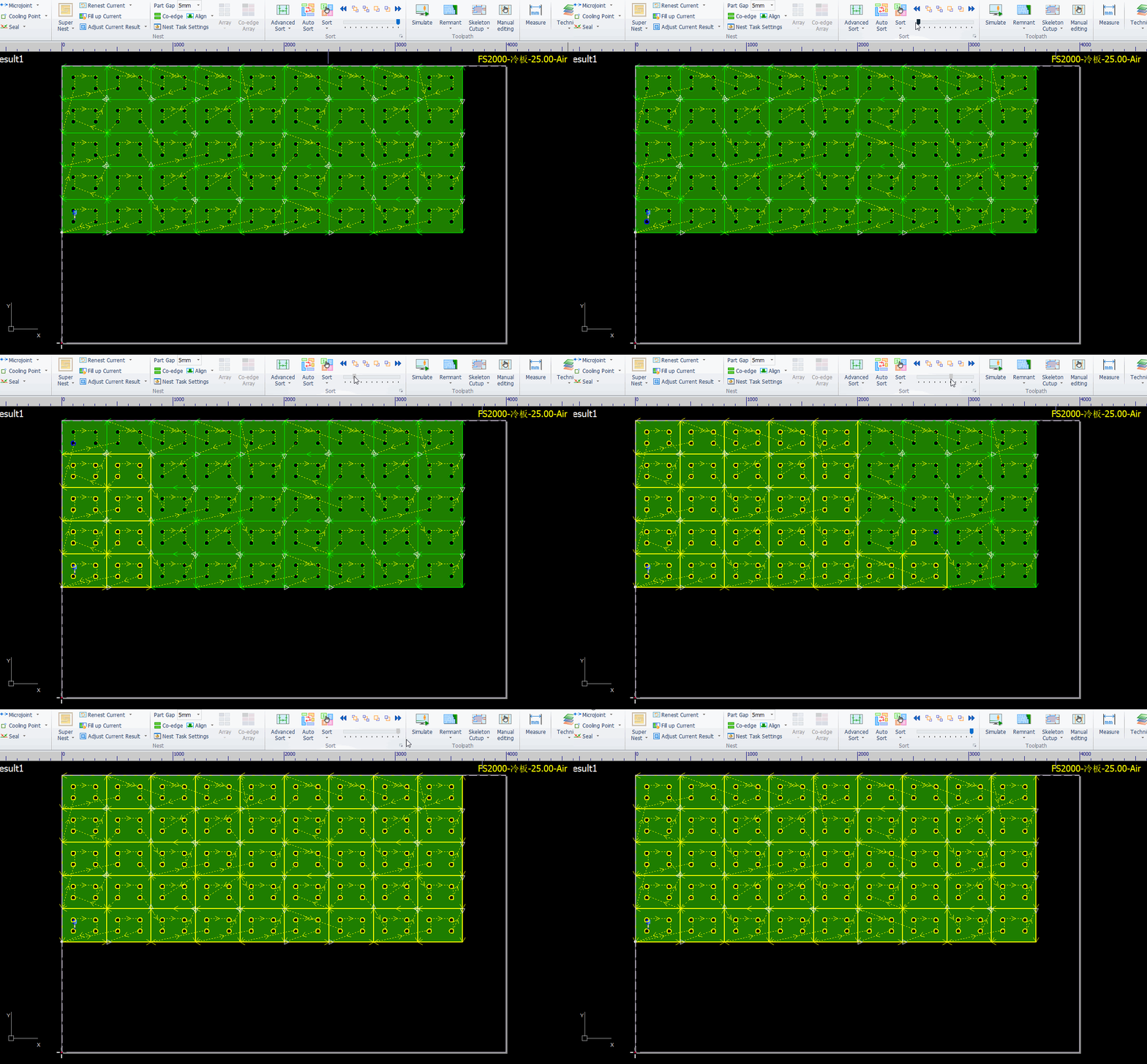
Example: If you set the sort type to Smart Sort and divide the grid at 1000 mm, the sort will be as follows:


Do you know?
During auto sort, you can sort the parts in blocks according to a fixed distance.
Operation Steps:
1.Click Auto Sort. For both By-Parts and In-Part, you can check Grid.
2.Set the parameters for Grid.
-
-
Pattern: Choose 1-way or S shape. (Note: S shape only takes effect for Smart Sort.)
-
-
-
Direction: Set the overall plate cutting direction as Horizontal or Vertical.
-
-
-
Interval: Set the interval value for grid division.
-
Interval Cut: Enable or disable interval cut for the part sequence.
-
-
- Skeleton line applied to grid: When enabled, skeleton lines will also be divided and cut according to the set areas.
Example: If you set the sort type to Smart Sort and divide the grid at 1000 mm, the sort will be as follows:

